Action Plans
Each time a control fails (orange or red), an action plan must be put in place and followed in order to remedy the situation.
List of Action Plans 
This screen allows you to follow the action plans:

The list can be filtered by type (major, minor, observation, opportunity), by status (open, closed, all) and by scope. It shows, for each action plan, its reference, type, associated risks, status, progress, name, scope, owners and due date. Clicking on a risk opens it. Overdue due dates are displayed in red.
The "Column visibility" button lets you show additional columns (associated clauses, remediation), and the "Copy" and "Export" buttons copy the displayed list or export it to Excel.
Clicking on the reference of an action plan opens it. The "New" button creates a new action plan.
An action plan can also be created when making a measurement, by ticking "Create an action plan".
Create an action plan
This screen is used to create an action plan manually.
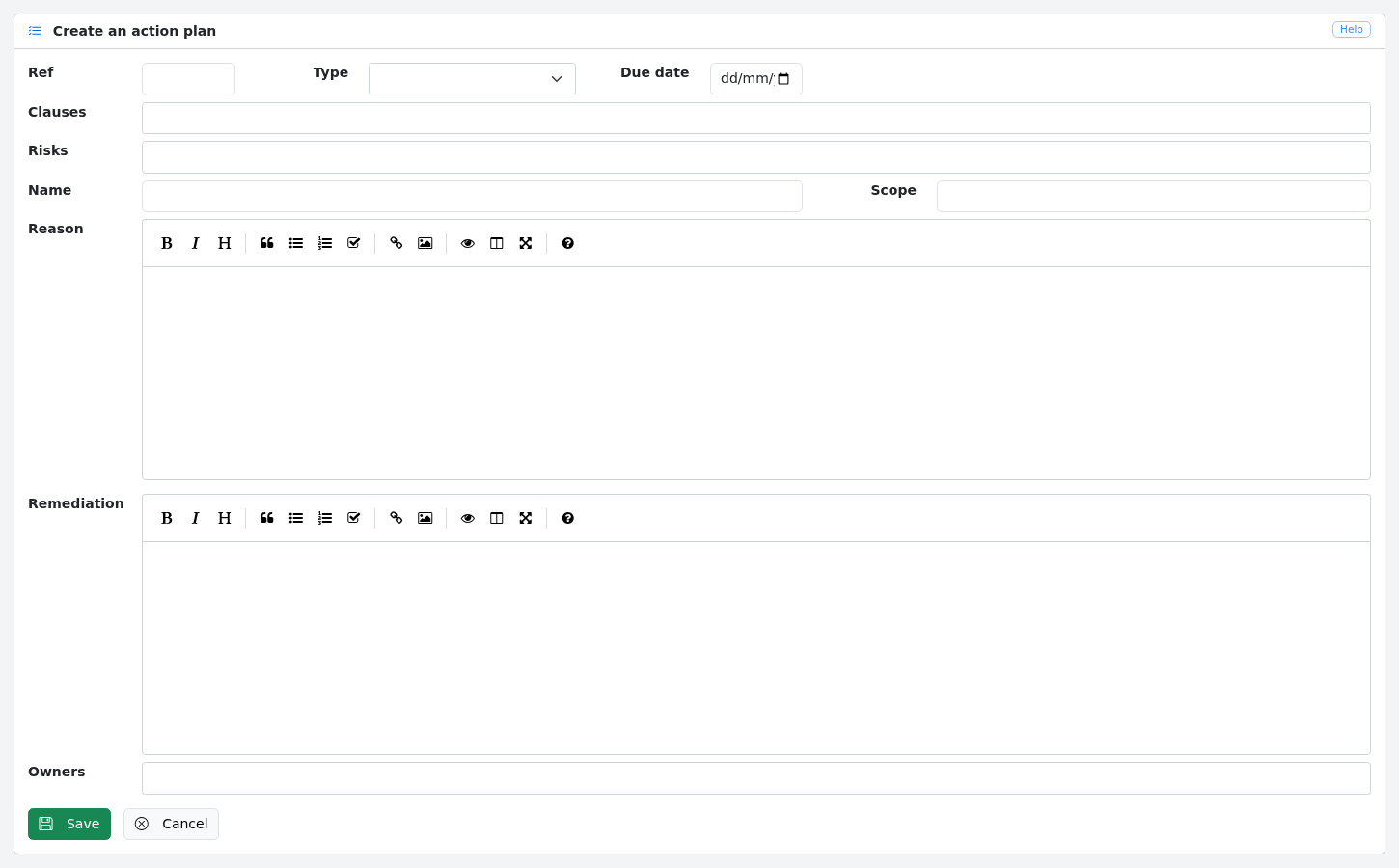
The screen contains:
-
the reference of the action plan;
-
its type: major, minor, observation or opportunity;
-
its name;
-
the scope and the associated clauses;
-
the associated risks;
-
the cause;
-
the remediation to be carried out;
-
the due date; and
-
the owners of the action plan.
When you click:
-
"Save", the action plan is created and you return to the list of action plans
-
"Cancel" you return to the list of action plans
Show an action plan
This screen displays an action plan: reference, type, status, scope, clauses, risks, name, cause, due date, owners and, for a closed action plan, its close date and justification. The clauses and risks are only shown when the action plan is linked to some. The clauses, the risks and the originating measurement can be opened from this screen.
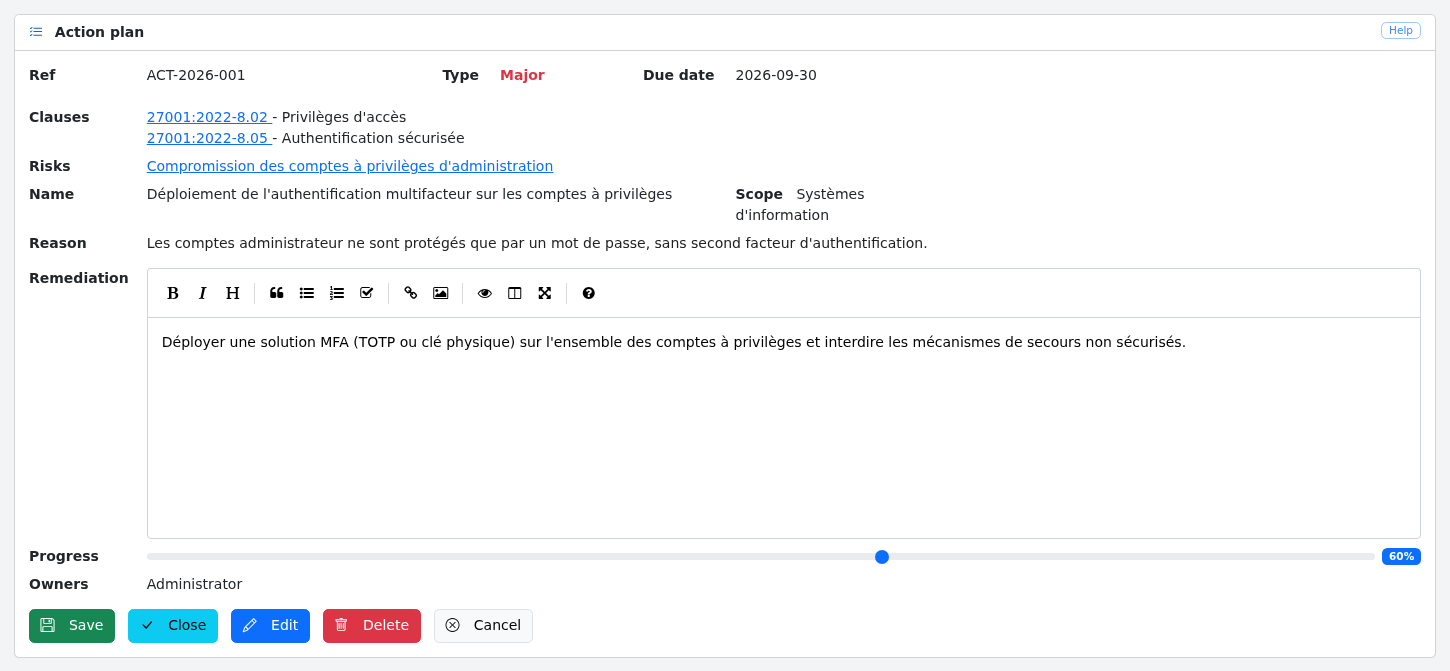
While the action plan is open, the remediation and the progress (slider) can be updated directly.
When you click:
-
"Save", the remediation and the progress are saved and you return to the list of action plans
-
"Close", you go to the action plan closure screen (open action plans only)
-
"Edit", you go to the action plan edit screen
-
"Delete", the action plan is deleted after confirmation
-
"Cancel" you return to the list of action plans
When the AI agent is enabled, the robot "AI analysis" icon, at the top right of the screen below the help button, opens a panel with an AI analysis of the action plan. See Use the analysis.
Close an action plan
This screen is used to close an action plan once the remediation has been carried out, or to reject it.
The screen contains a reminder of the action plan and:
-
the new status: open, closed or rejected;
-
the close date; and
-
the justification of the closure.
When you click:
-
"Save", the status, close date and justification are saved and you return to the list of action plans
-
"Cancel" you return to the action plan
Edit an action plan 
This screen allows you to edit all the information of an action plan: reference, type, name, scope, clauses, risks, cause, remediation, due date, owners, progress, status, close date and justification.

When you click:
-
"Save", you save the action plan and return to the list of action plans
-
"Cancel" you return to the list of action plans