Setup
The "Configuration" menu gives access to the attributes, domains, users, groups, import, framework crosswalks, settings and logs.
Attributes
This screen allows you to manage the attributes associated with the security measures. It contains the list of attributes and allows you to create, delete or modify attribute lists.

Administrators only have access to a "Manage" button, which opens a form to globally replace an existing attribute value with a new one. The replacement is applied everywhere the value is used: in the attribute lists, in the controls, and in measures that have not yet been carried out. Measures that have already been carried out are left untouched, since they are historical records.

Domains
This screen allows you to create, modify or delete lists of security domains.

The application is provided with a security measurement base inspired by the ISO 27001:2022 standard, but it is possible to define new security domains inspired by other standards such as PCIDSS, HDS, etc.
Users
Users are directly defined in the application.

A user is composed of a login, a name, a title, a role, an email address, a language, a password and the list of measurements assigned to them. The language is used for the user interface, the notifications and the generated documents.
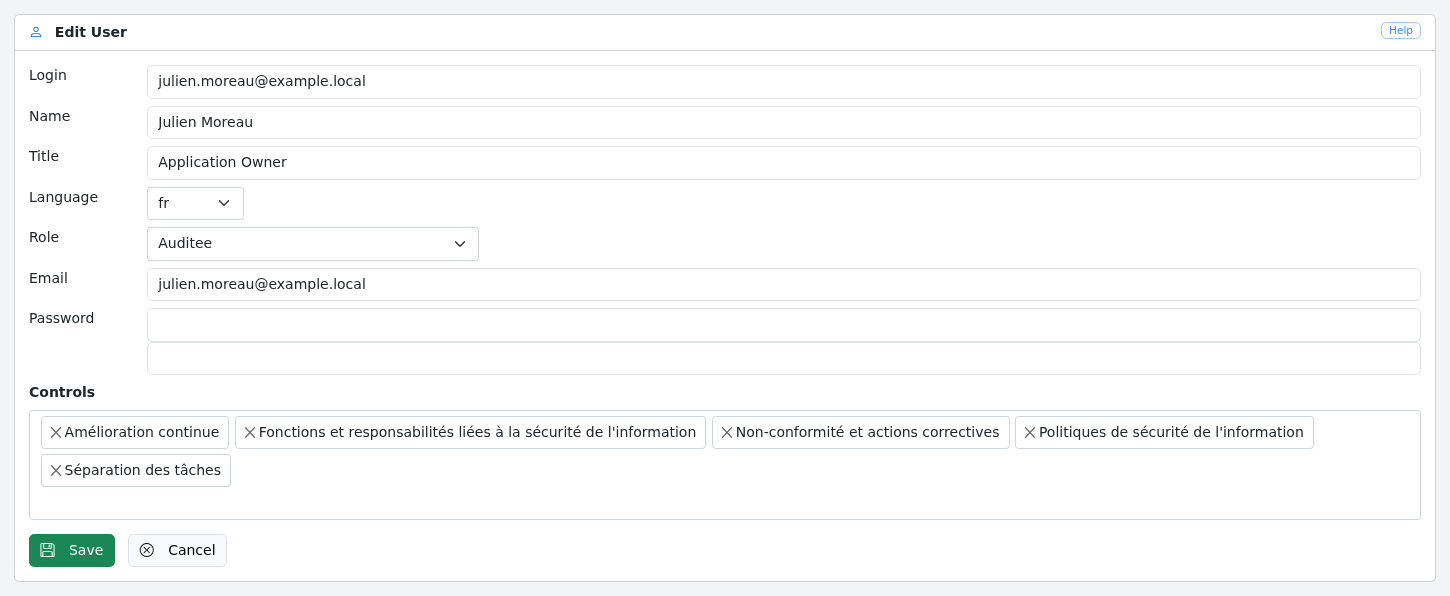
There are six different roles:
-
Administrators: The administrator can create users, measurements, attributes, modify controls already carried out.
-
Users: users can use the application without being able to modify the measurements, attributes and controls already carried out.
-
Auditee: Auditees can only carry out and see the measurements that have been assigned to them or that they have carried out previously (see Delegation).
-
Auditor: the auditor has read access to all the information in the application. The auditor cannot use the AI agent.
-
API: account used to access the API.
-
Disabled: the account still exists, so that its history is kept, but can no longer log in.
The "History" button of the user display screen shows the change history of this user.
Groups
This screen is used to define user groups. A group brings together a set of users and controls.

A group is composed of :
-
a group name
-
a type: Business or Security (can only be changed by an administrator)
-
a group description
-
a list of users
-
a list of measurements
The group type distinguishes the measurements owned by the Security team from those owned by the other business functions in the Steering screen.
Only the measurements not yet carried out are listed in the form; completed or proposed measurements stay linked to the group when it is updated.
Reports
This screen is available to administrators and users. It is used to generate the ISMS steering report, the Statement of Applicability and the data exports.

ISMS steering report: select a framework (optional) and a period, then click "Create". A Word document is generated from the steering report template.
Here is the ISMS pilot report:


Statement of Applicability (SoA): generates an Excel file listing, for each domain and clause, the security measures and the planning date of their controls for each scope.
Data export: exports users, domains, attributes, security measures, controls, action plans and the risk register to Excel files.
Import
Measures can be imported from an .XLSX file or from the template database.
When importing, all other controls and measures can be deleted and test data generated.

Settings
The "Settings" page, restricted to administrators, groups the application settings in tabs:
-
Documents: the document check and retention period;
-
Templates: the document templates;
-
Scoring: the risk scoring configuration;
-
AI: the configuration of the AI agent;
-
Notifications: the notifications sent to users.
Each tab has its own buttons. After saving, the page comes back to the tab that was changed.

Documents
The "Documents" tab of the Settings page is used to check the documents stored in Deming and to configure their retention period.

Storage
This part of the tab lets you check the integrity of documents stored in the application.
By clicking on “Check”, Deming launches the integrity check of documents stored in the application, using a CRC32.
Retention
This part of the tab lets you configure the retention period (in months) for checks carried out in the application.
All checks carried out before this period are deleted, along with the associated documents, action plans and logs.
When you click on:
-
"Save" - the retention period is saved;
-
"Test" - Deming displays the number of logs, documents and checks that would be deleted, without deleting them;
-
"Delete" - after confirmation, the deletion is carried out immediately.
The deletion is also carried out automatically by executing the command
php artisan deming:cleanup
command via a cron.
Templates
The "Templates" tab of the Settings page is used to modify the document templates used for control sheets and the ISMS management report.
The tab contains two blocks, "Control sheet" and "Steering report". Each block provides:
-
a link to download the default template;
-
a "Custom model" link to download the custom template, if there is one;
-
a field to upload a new template (.docx), which replaces the custom template.
The uploaded templates are saved by clicking on "Save".
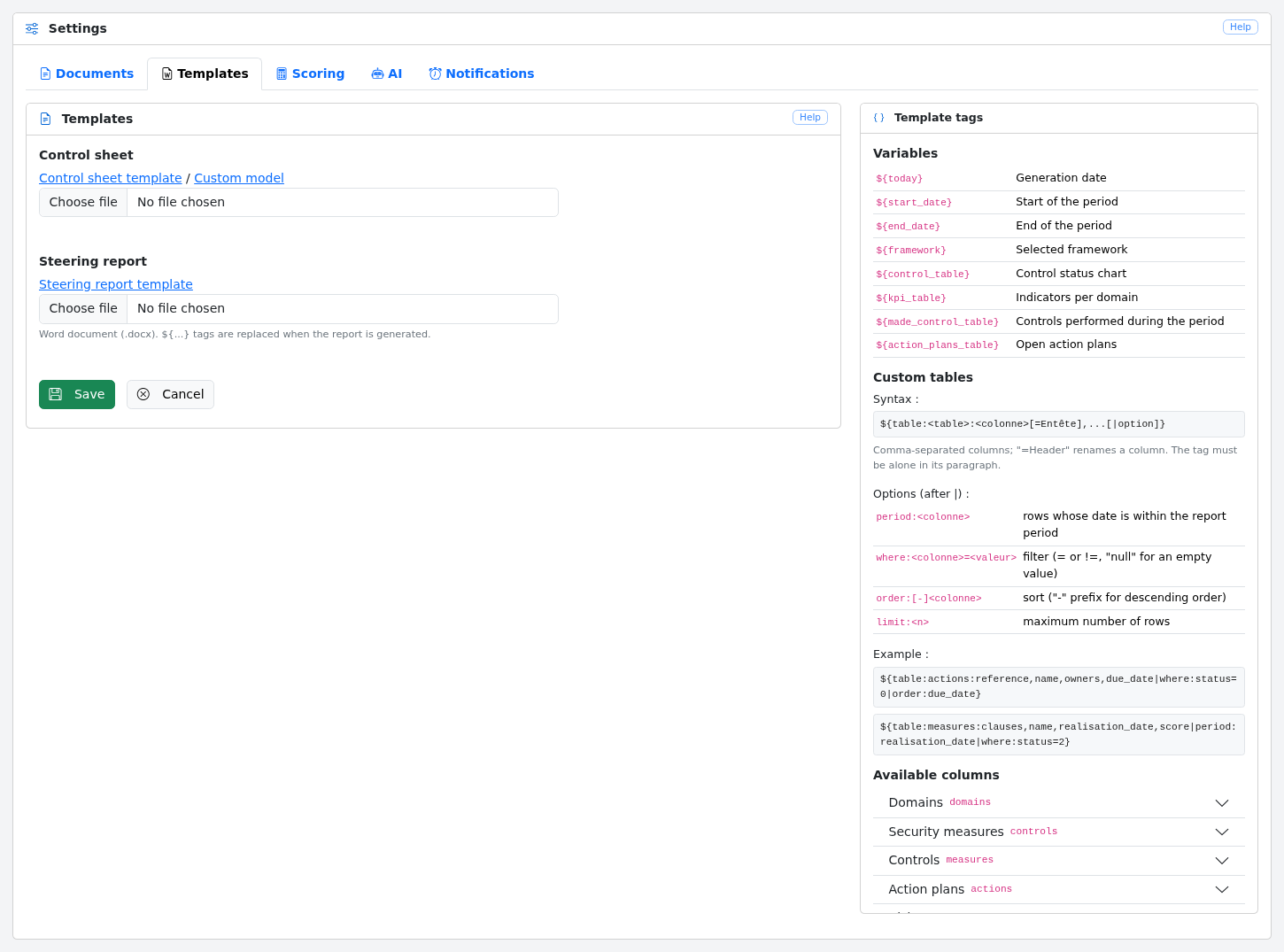
The steering report template is a Word document (.docx) whose tags are replaced when the report is generated. The "Template tags" panel, displayed next to the templates, lists the available tags; clicking on a tag copies it to the clipboard. The "Available columns" part lists, for each table, the columns that can be used in the custom tables.
-
Variables:
${today},${start_date},${end_date},${framework}, and the predefined tables${control_table},${kpi_table},${made_control_table}and${action_plans_table}. -
Custom tables:
${table:<table>:<column>[=Header],...[|option]}, where<table>is one ofdomains,controls,measures,actions,risks,exceptions,attributes,usersoruser_groups. The tag must be alone in its paragraph. The available options areperiod:<column>(rows within the report period),where:<column>=<value>(filter,!=andnullare allowed),order:[-]<column>(sort,-for descending order) andlimit:<n>.
Example:
${table:actions:reference,name,owners,due_date|where:status=0|order:due_date}
AI
The "AI" tab of the Settings page, restricted to administrators, is used to enable and configure the AI agent that analyses controls, measurements, action plans and risks: activation, agent URL, API key, list of the available tasks, connection test and deletion of all analyses. The prompts and the models are managed by the provider of the agent, the Sourcentis AI gateway. AI is disabled by default.
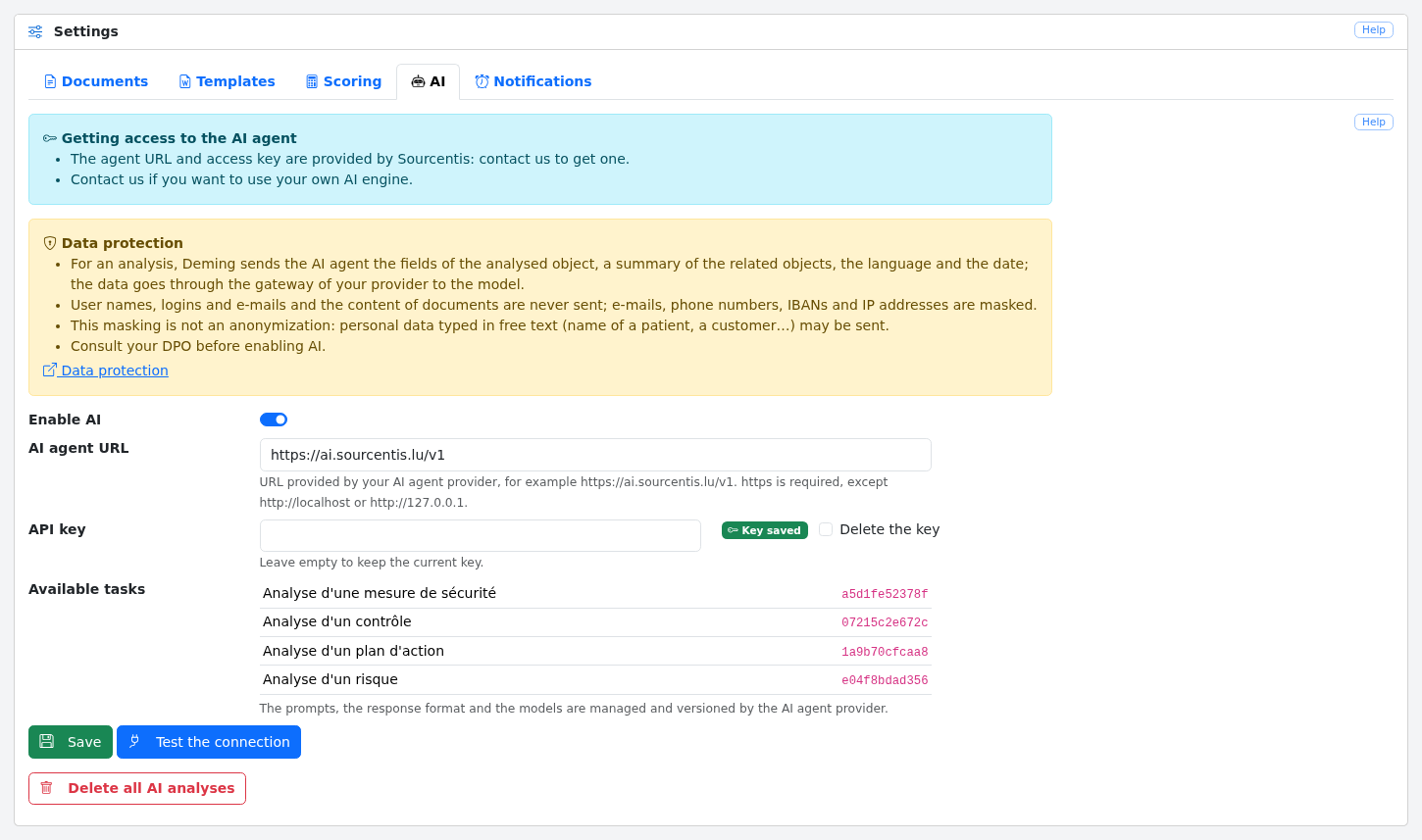
See Enable and configure and, before enabling it, Data protection.
Notifications
The "Notifications" tab of the Settings page is used to configure the notifications sent to users when they have to carry out controls.
The tab contains two blocks.
SMTP server: the server used to send the mails.
-
the server and the port;
-
the encryption (none, SSL or TLS) and automatic STARTTLS;
-
the authentication, the user and the password;
-
the optional DKIM signature: domain, selector, private key path and passphrase.
These settings are stored in the database. The password and the DKIM passphrase are encrypted with the application
key (APP_KEY) and are never displayed again: leaving the field empty keeps the saved value, the "Delete" box erases
it. If the APP_KEY changes, they must be entered again.
Notifications: the content and frequency of the mails.
-
the sender of the mail;
-
the subject and content of the mail sent to the user;
-
the periodicity of sending notifications;
-
the delay: the controls due within this delay are notified.

When you click on:
-
"Save" - the configuration is saved;
-
"Test" - a test mail is sent to the current user, with the values entered (they are not saved);
-
"Cancel" - you return to the main page.
Logs
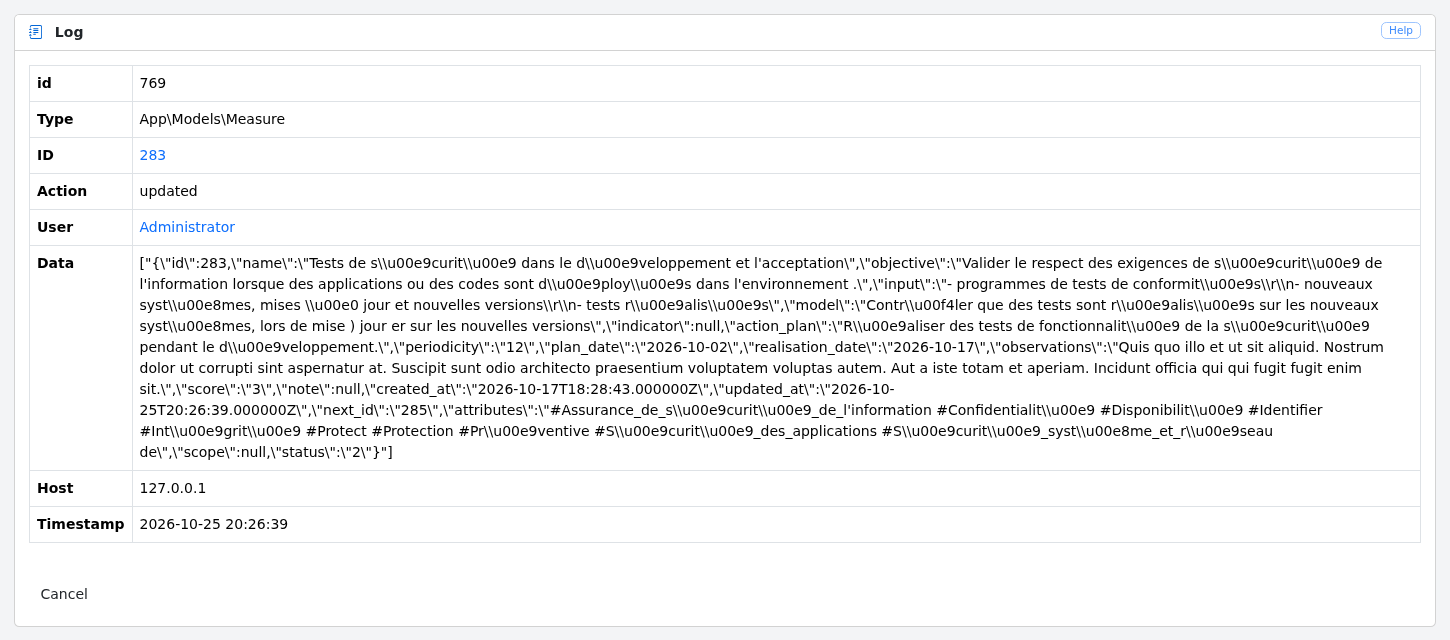
This screen, available from the "Configuration" menu, lists, from the most recent, all the changes made to the security measures, the controls, the action plans, the risks, the users and the configuration, as well as the logins and logouts: action (creation, modification, deletion, login, logout), type and identifier of the object, user, IP address and date.
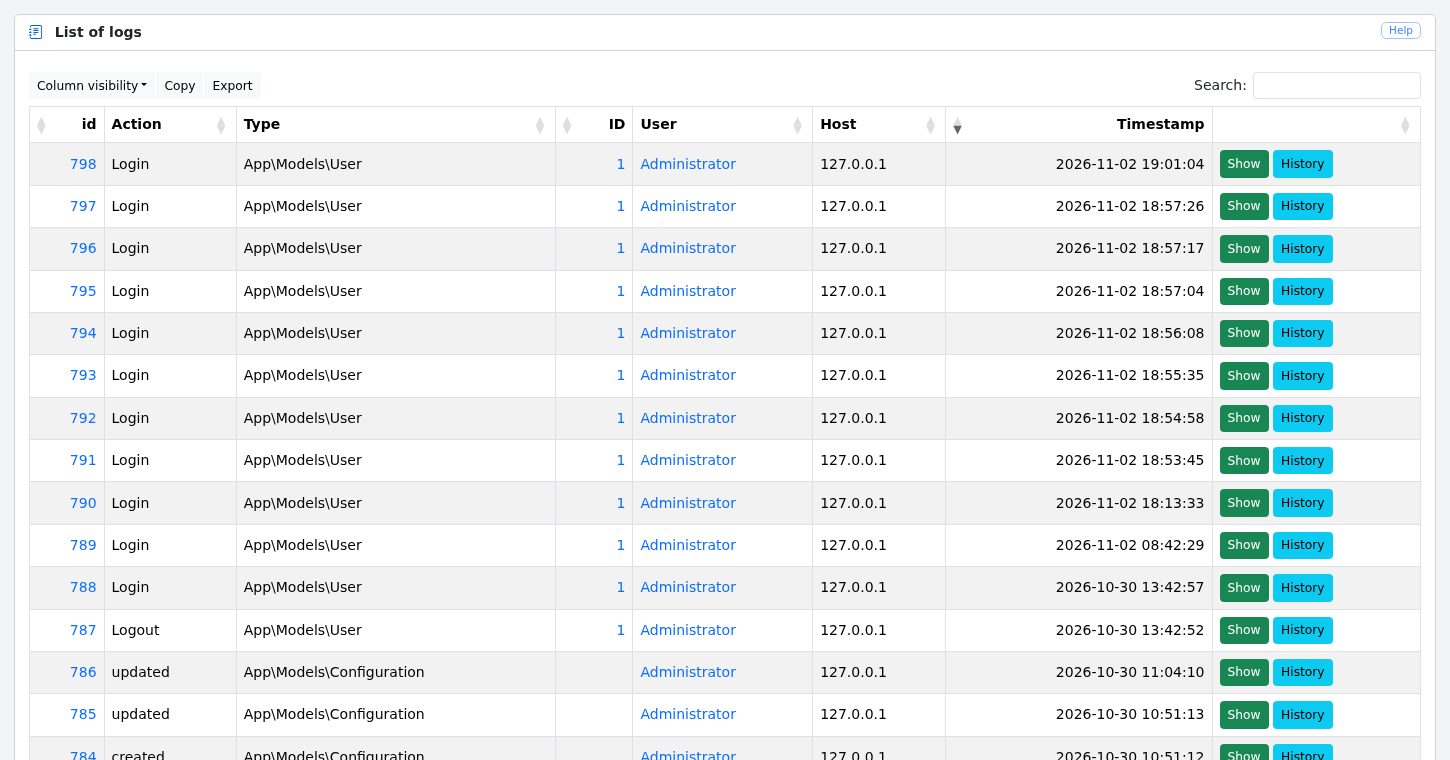
Clicking on:
-
the identifier of an entry, or the "Show" button, displays the detail of the change, with all the data of the object at that time;
-
the identifier of an object displays this object;
-
the "History" button displays the change history of this object.
Here is the detail of a change:
The change history shows, in columns, the successive values of the object:
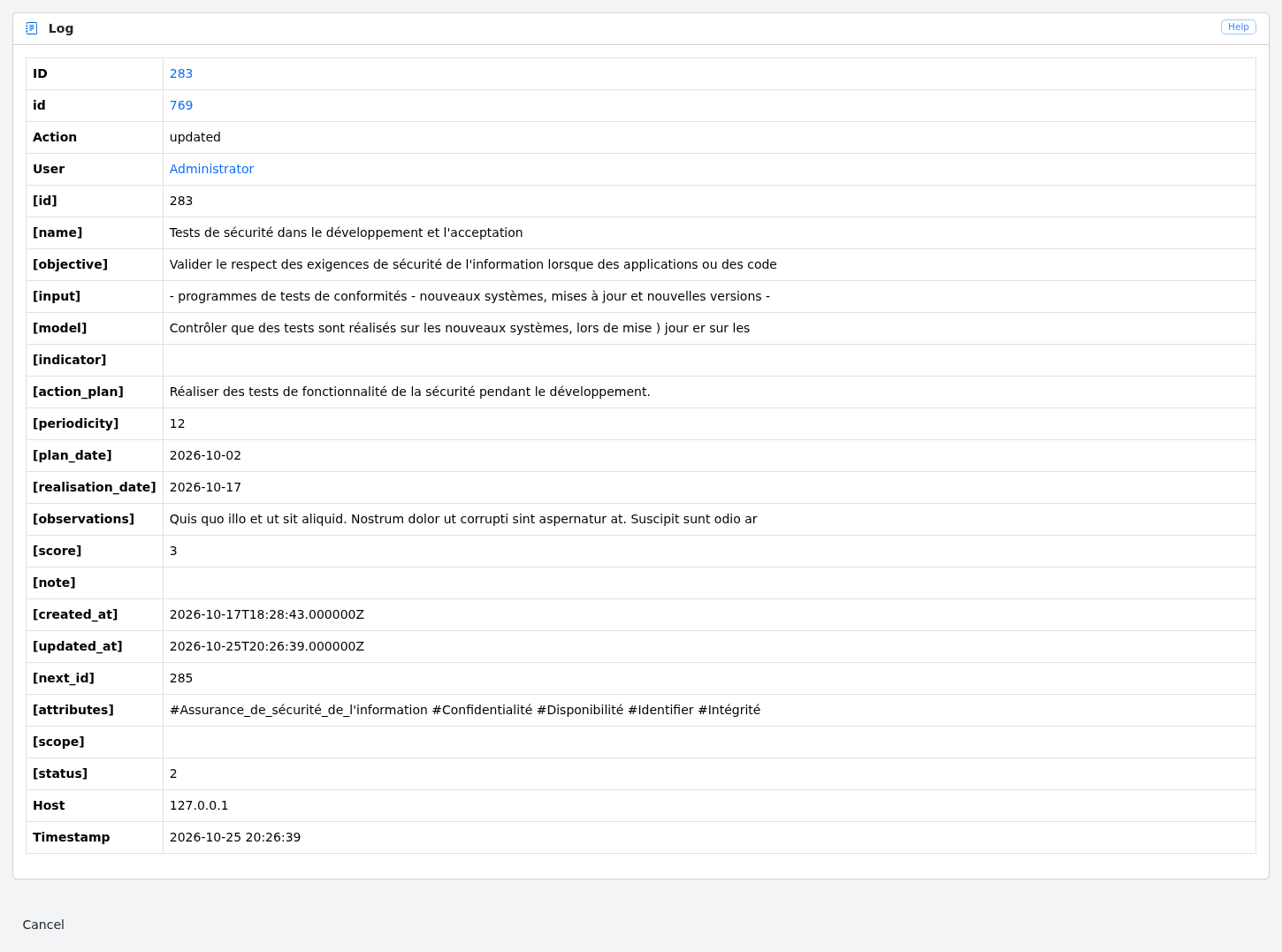
The change history of an object is also accessible through the "History" button of the screens displaying a control, a risk or a user.
The logs older than the retention period are deleted by the deming:cleanup command.