Measurements
List of measurements
This screen is used to display the list of measurements and to filter them by:
-
domain,
-
clause,
-
scope,
-
planning period,
-
measurement status: all, done and to do.
The "Column visibility" button lets you choose the displayed columns, and the "Copy" and "Export" buttons copy the displayed list or export it to Excel.
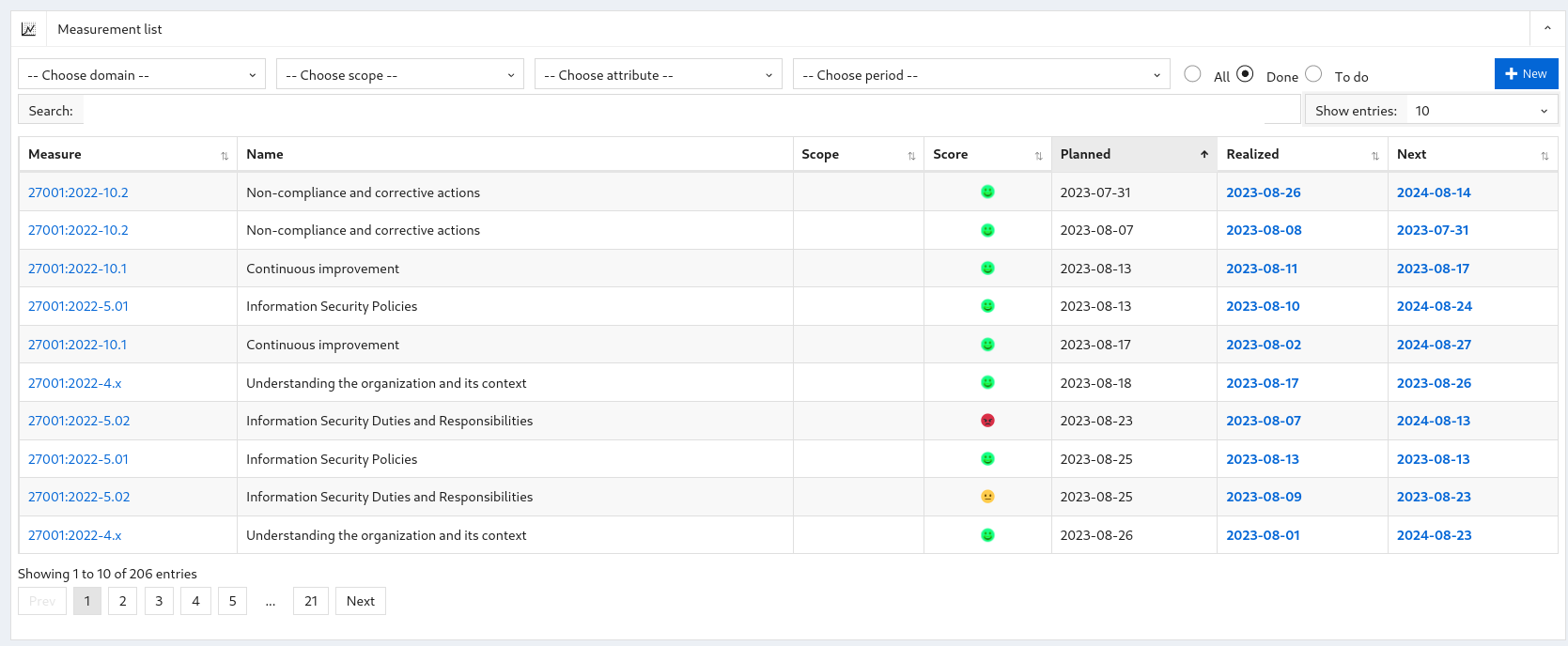
When you click:
-
The domain, you arrive at the security domain display screen
-
Clause, you arrive at the security measure display screen.
-
The date of completion, planning or the date of the next check, you arrive at the security check display screen.
Show a measurement
This screen contains the information of a measurement:
-
The name of a measurement;
-
The objective of the measurement;
-
Attributes ;
-
Data;
-
The model ;
-
The dates of planning, completion and the date of the next inspection;
-
The score assigned to the measurement; And
-
The score attributed to the measurement (green, orange or red).
The "Make" and "Plan" buttons are present if this measurement has not yet been carried out.
The "Edit", "Copy", "Delete" and "History" buttons are available if the user is an administrator.
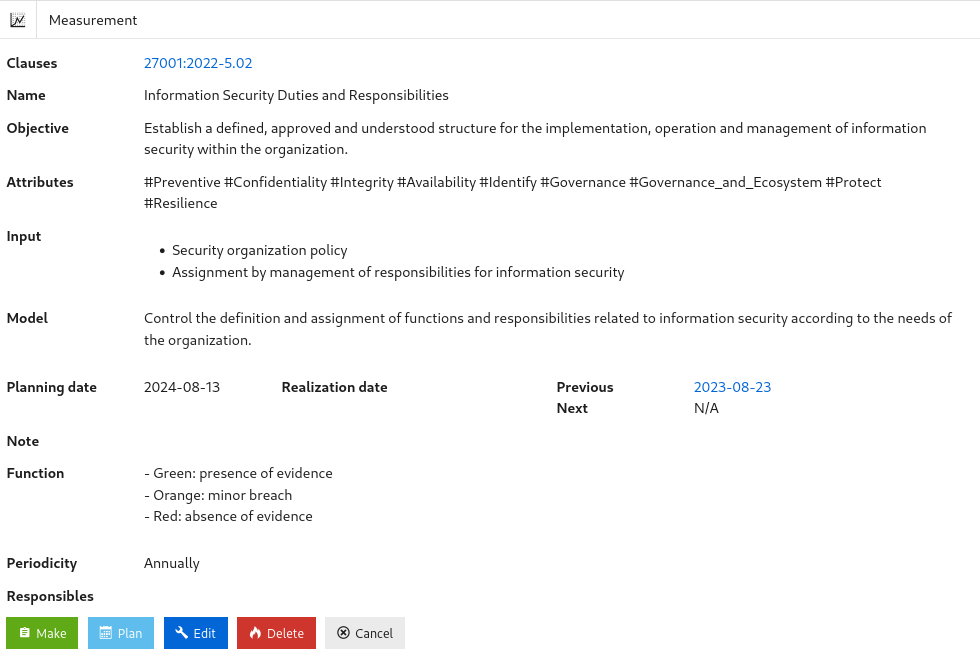
When you click:
-
"Make", you are sent to the measurement completion screen
-
"Plan", you are sent to the measurement planning screen
-
"Edit", you are sent to the measurement edit screen
-
"Copy", you are sent to the measurement creation screen, pre-filled with the data of this measurement
-
"Delete", the measurement is deleted and you are sent to the list of measurements.
-
"History", you are sent to the change history of this measurement
-
"Cancel", you are sent to the list of measurements
When the AI agent is enabled, the robot "AI analysis" icon, at the top right of the screen below the help button, opens a panel with an AI analysis of the measurement. See Use the analysis.
Create a measurement
A measurement can be created in three ways:
-
From a control: the "Plan" button of the control display screen creates a new measurement pre-filled with the data of the control.
-
By copying a measurement: the "Copy" button of the measurement display screen opens the creation form pre-filled with the data of this measurement.
-
Manually: from the list of measurements, the "New" button opens the creation form.
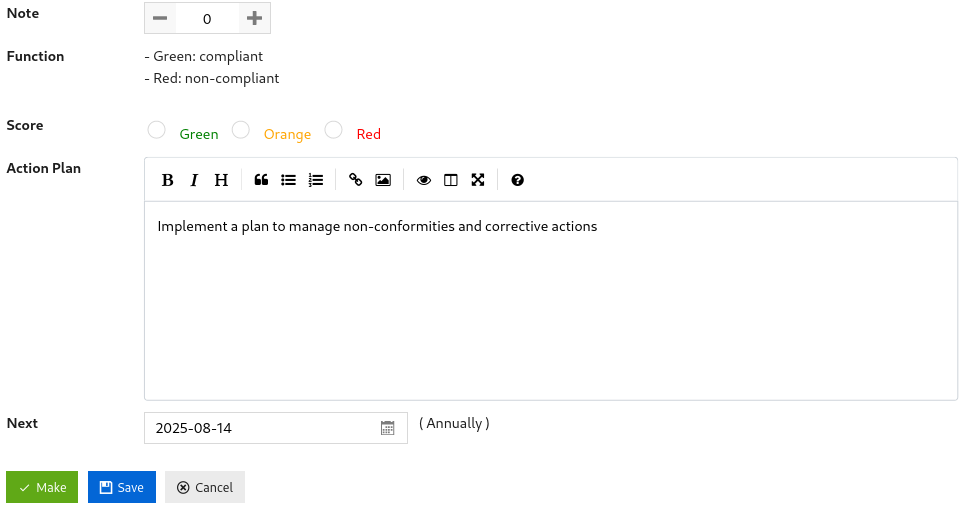
This screen contains the following fields:
-
The associated clause(s);
-
The name of the measurement;
-
The scope;
-
The objective of the measurement;
-
The attributes;
-
The data to collect;
-
The score calculation model;
-
The action plan to apply if the measurement fails;
-
The planning date and the periodicity; and
-
Those responsible for carrying out the measurement.
When you click:
-
"Save", the measurement is saved and you are returned to the list of measurements.
-
"Cancel", you are returned to the list of measurements.
Edit a measurement
This screen allows you to modify the information of an existing measurement.
It is accessible only to users with the Administrator role.
In addition to the fields of the creation screen, it contains the result of the measurement: completion date, observations, evidence, note, score and indicator.
When you click:
-
"Save", the changes are saved and you are returned to the measurement display screen.
-
"Cancel", you are returned to the measurement display screen.
Schedule a measurement
This screen is used to schedule a measurement.
This screen contains the information of a measurement:
-
The name of a measurement;
-
The objective of the measurement;
-
The date of planification;
-
Periodicity ; and
-
Those responsible for carrying out the measurements.
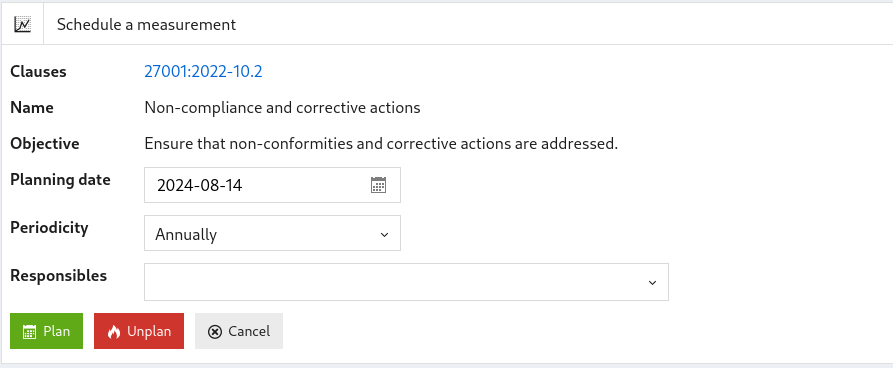
When you click:
-
"Plan", the planning date, the recurrence and the persons in charge are updated and you are returned to the display screen of measurements
-
"Unplan", remove the measurement and you are returned to the List of measurements
-
"Cancel", You are returned to the measurement display screen
Making a measurement
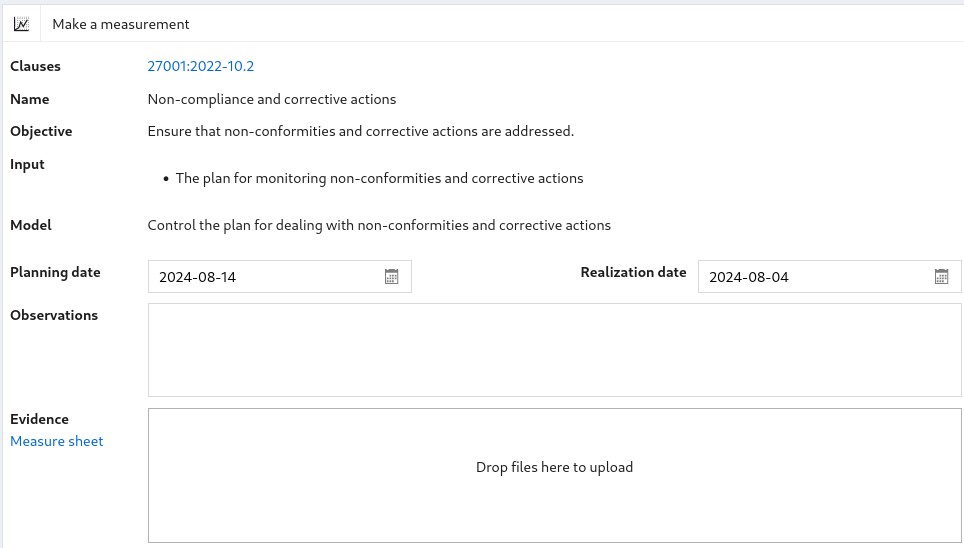
This screen allows you to perform a measurement.
This screen contains:
-
The clauses,
-
The name of the measurement,
-
The objective,
-
The input data,
-
Completion date, planning date,
-
A text area for observations
-
A file area for saving evidence (CTRL+V can be used to paste a file or screenshot)
-
A link to download the measurement sheet,
-
The computation model applied,
-
The note,
-
The score,
-
The action plan,
-
The date of the next check,
When you click:
-
"Make", the measurement is saved and a new measurement is created at the scheduled date
-
"Save", the measurement is saved
and you return to the list of measurements.
Measurement sheet
The measurement sheet is a word document generated by the application based on the measurement data.
This form allows you to describe the observations made, to add screenshots or tables and to electronically sign the observations.
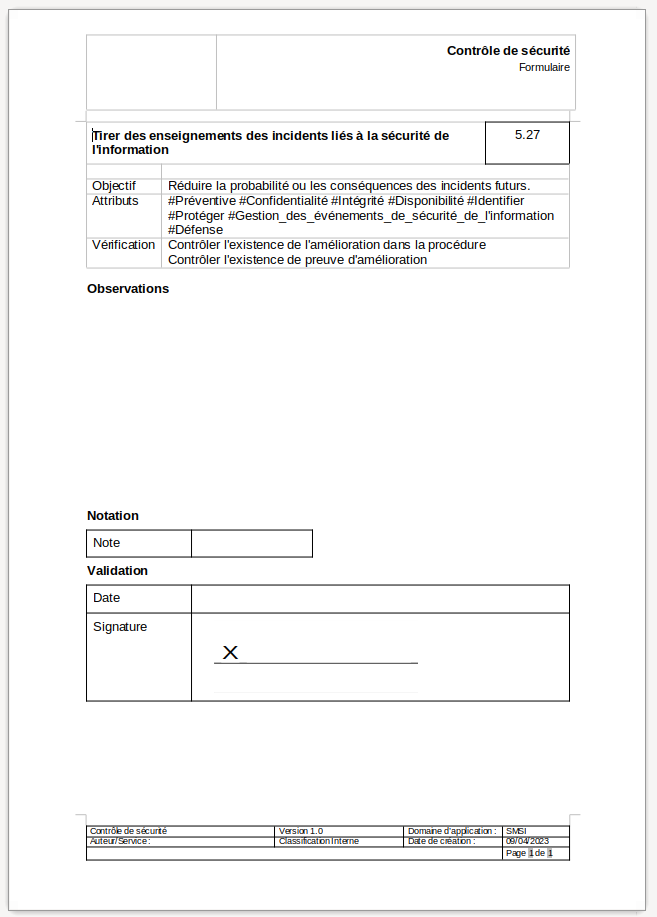
The checklist can be adapted to match your organization's document model.